

Adding documents and connecting your website
Upload files or point your agent at your website so it can answer from your own content.
What this lets you do#
Your LucyIQ agent answers from your content. You add that content two ways: by uploading documents, or by pointing the agent at your website. This page covers both. You can use either or both, and add more at any time.
Uploading a document#
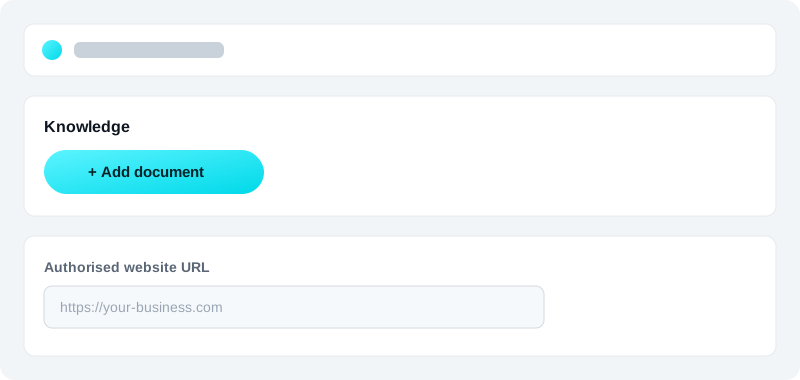
- Open Manage my Lucy and go to the Knowledge tab.
- Click Add document and choose your file — PDF, Word, spreadsheet, and more are all supported.
- Your agent processes it in seconds. When it's finished, you'll see how many pages were added.
Your customers can start getting answers from that document straight away. There's no waiting and nothing technical to do.
Pointing your agent at your website#
- In Manage my Lucy → Knowledge, add your website address in the Authorised website URL field.
- LucyIQ reads your public pages and adds them to your agent's knowledge.
Good to know: your authorised website URL also controls where your chat can be embedded. If it's blank, your public chat stays switched off.
Keeping answers up to date#
When something changes, just add or replace the document — the new information is available in seconds. If your agent ever gives an outdated answer, open Manage my Lucy and tell it the correct information; it saves the update so future answers use it instead.
When an answer is missing#
If a customer asks something your agent doesn't know yet, LucyIQ notes it as a knowledge gap. You'll see these in the Knowledge Improvement area, where you can answer them — either by adding a document or by typing the answer directly.